Main Window (Commander Interface)
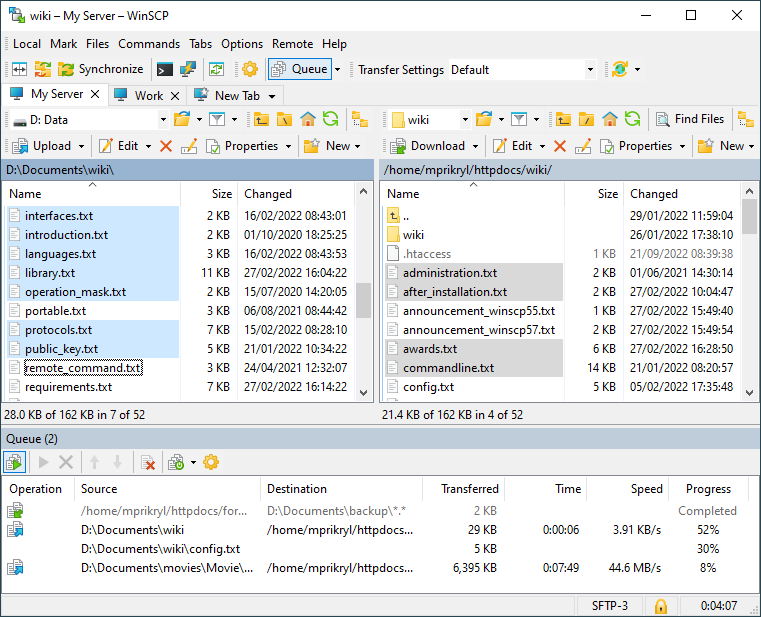
Commander Interface is a two-pane file manager interface based on Norton Commander (and similar file managers). When working with a remote server, a local folder is displayed in the left panel and a remote folder in the right panel. The interface can be also used as a local file manager with both panels showing local folders. Files are usually transferred between these two panels, though it is possible to transfer files into a different folder too. This kind of user interface is also known as Orthodox File Manager.
Advertisement
Learn if this interface is appropriate for your needs.
Advertisement
Screen Components
The screen of the interface has several components. Some of them are hidden, by default. They are (from the top to the bottom):
- Main toolbar with the main menu.
- Tabs.
- File panels, each having own toolbar, path display, directory tree (hidden by default) and status line.
- Command line.
- Background transfer queue list (hidden by default).
- Status line.
You can show/hide most of these components from the Options menu or using the context menus.
Command Line
Command line is an optional component, located by default below the file panels. To show/hide the command line, go to Options > Command Line.
Using the command line, you can type and execute any shell command. Depending on which file panel is active, the command is executed either on the local machine (if the local file panel is active) or on remote server (if the remote file panel is active). You can easily see this from the prompt on the left side of the command line. Symbol > indicates local command, while symbol $ indicates remote command.
You can easily insert names of files selected in active panel to command line.
To execute entered command, press Enter (the input box must have focus). When you execute remote command, Console window is opened to show you the command output. Learn more about remote commands and how to use them.
Using the Interface
While you can control the interface with mouse, it is primarily designed to be controlled using keyboard. If you are not familiar with the Norton Commander concept, there are few important things that you need to learn:
- Use
Tabkey to switch between the left and right panel. - Keyboard shortcut for file operations are sensitive to the panel that has focus. For example pressing
F5(Copy) starts transfer from the active panel (when working with remote session, that means Download, when the active panel is the local one, and Upload if the active panel is the remote one). - By default, file selection with keyboard works differently to what you may be used to from other Windows applications (like Windows File Explorer).
Basic Tasks
Check what you can do with the interface.
Selecting Files
By default, file selection with keyboard works differently to what you may be used to from other Windows applications. Some of the differences are:
- While selecting the files using keyboard, use
SpaceorInsertkey.Spacejust selects/deselects the focused file.Insertbeside the selection moves the focus to the next file. Hence, you may select five files in a row by pressingInsertkeys five times. - Learn more file selection shortcuts.
- For other selection shortcuts, see Mark menu.
Advertisement
This selection method provides an advanced ability of selection and focus to be different.
You may wish to switch to standard Windows selection style.
Keyboard shortcuts
While the Commander interface tries to preserve standard Windows keyboard shortcuts, where possible, some of them collide with the original shortcuts of Norton Commander. In such cases meaning from Norton Commander is preserved by default.
Example is F5 key, which means “copy” in Norton Commander, but “refresh” in Windows.
You can opt to use Windows shortcuts in preferences.
See full list of keyboard shortcuts in Commander interface.