WinSCP can't connect to my router

Advertisement

sadam
Joined:
Posts:
5
Location:
Warsaw, Poland

WinSCP can't connect to my router

The router is Leaf Bering uClibc. I can connect to it using PuTTY. Without problems. And using WinSCP I can't. I don't know what to check. Login in that session is authenticated and after that
I see "Optimize connection buffer size". Where to do it? And how? Calling PuTTY from WinSCP works too. Without any problems.

Reply with quote

Advertisement

martin
Site Admin
martin avatar
Joined:
Posts:
42,619
Location:
Prague, Czechia

Re: WinSCP can't connect to my router

Can you connect with any other SFTP client?
If you can, please post its and WinSCP's log files.

Reply with quote

sadam
Joined:
Posts:
5
Location:
Warsaw, Poland

On the Leaf Bering forum I got this advice:
If you have ssh access to your LEAF box you can use winscp to copy the
files directly to your windoze box.
It was 2 days ago. But I read it yesterday. I read a bit about the SSH protocol. I saw the advice to use PuTTY. I installed it. Then I installed WinSCP. I haven't used such programs before. I don't know what the log files are called and where to look for them.

Reply with quote

DragonZX
Translator
Joined:
Posts:
27
Location:
St.Petersburg

Most routers users SCP protocol for connection, try this type. However, sometimes routers don't have even this feature. In this case, you have to use just PuTTY for connection.

Reply with quote

Advertisement

sadam

Big thanks Martin. It helped me. Leaf Bering uClibc automatically launches the application after startup, waiting for you to select one of its menu items. PuTTY shows that menu on screen and you can choose one of the points or exit it (choosing q - quit). WinSCP waits for this application to finish. This can be seen in the log. After a while, WinSCP, unable to wait, displays an error message.

Reply with quote

sadam

Sorry, I don't know anything about SFTP. But I could change the configuration of this router and block this application from starting at startup. And now WinSCP connects to this router. And I can copy files. It would be nice if WinSCP, after connecting to a router, could simulate sending something from the keyboard to that router. I think it can be done. PuTTY sends it. Changing the router's configuration to block this application from starting at startup isn't easy for a newbie.

Reply with quote

martin
Site Admin
martin avatar

But WinSCP needs an SFTP server to start, not exit from some application to shell. When the application is enabled, it seems that it overrides WinSCP's request for SFTP server.
Well, if your router supports SFTP at all. As you still didn't post the log, I cannot actually know.

Reply with quote

Advertisement

Guest

However, I decided to write an answer. Since there's a question about the log. I wanted to avoid any doubts.

My router is a firewall. Leaf Bering-uClibc (https://bering-uclibc.zetam.org/wiki/Main_Page and https://sourceforge.net/projects/leaf/files/Bering-uClibc/)
It has two network cards. For masquerading. I don't want to publish IP addresses from my local network.
So xxx.yyy.zzz.fw is the IP of its network card connected to the local network. And xxx.yyy.zzz.loc1 is the IP number of the computer from which I ran WinSCP.
There were still parts of the log file I didn't understand. Maybe encrypted. Maybe not. Now I entered xxxxxxxxxxxxxxxxxxxxxxxx there. Just in case.
When the firewall starts a communication session, it first asks for a login and password.
Then it launches an application that allows you to change the configuration. You must select something or cancel (q - exit) the changes.
This is the standard solution for this firewall. The same is true when starting a session from a Windows computer using PuTTY.
A login, password, and application waiting for selection. The screenshot taken by this application is in the attached PuTTY.png.
WinSCP also starts a session. He logs in and waits for the application to finish. And the application waits for his selection.
Screenshots of WinSCP are attached: WinSCPstart.jpg, WinSCPstarted.jpg, and WinSCPended.jpg. This last one is how WinSCP lost its patience.
And the WinSCP log is in the attached root@xxx.yyy.zzz.fw.log. And it would be nice if WinSCP chose "q" as, for example, the second (?) password.

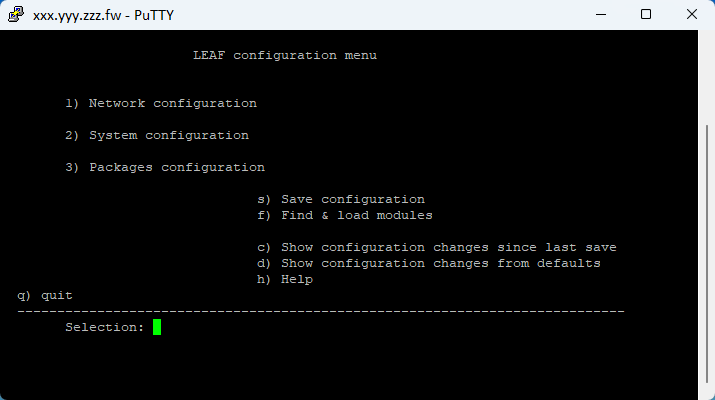
PuTTY.png

PuTTY.png

Reply with quote

Advertisement

You can post new topics in this forum