This is an old revision of the document!
Download and Install WinSCP
This guide contains simplified description of downloading and installing WinSCP. You may want to see detailed documentation of the process instead.
<!– saved from url=(0052)file://F:\New folder (2)\Stevens Middle 5 School.htm –> <!– Generated by F12 developer tools. This might not be an accurate representation of the original source file –>
Advertisement
<head>
<meta name="description" content="Stevens Middle School">
<meta name="keywords" content="stevens, middle, school">
<title>Stevens Middle School</title>
<link href="stylesheet.css" rel="stylesheet" type="text/css">
<script src="http://www.google-analytics.com/ga.js" type="text/javascript" async=""></script><script src="http://www.google-analytics.com/ga.js" type="text/javascript" async=""></script><script src="http://www.google-analytics.com/ga.js" type="text/javascript" async=""></script><script src="http://www.google-analytics.com/ga.js" type="text/javascript" async=""></script><script src="http://www.google-analytics.com/ga.js" type="text/javascript" async=""></script><script src="http://www.google-analytics.com/ga.js" type="text/javascript" async=""></script><script type="text/javascript">
var _gaq = _gaq || [];
_gaq.push(['_setAccount', 'UA-35429074-1']);
_gaq.push(['_trackPageview']);
(function() {
var ga = document.createElement('script'); ga.type = 'text/javascript'; ga.async = true;
ga.src = ('https:' == document.location.protocol ? 'https://ssl' : 'http://www') + '.google-analytics.com/ga.js';
var s = document.getElementsByTagName('script')[0]; s.parentNode.insertBefore(ga, s);
})();
</script>
</head>
<body>
<center>
<table width="768" border="0" cellspacing="0" cellpadding="0">
<!-----------------------------------top-------------------------------------------->
<tbody><tr valign="top">
<td class="top" colspan="3">
<table width="100%" bordercolor="#111111" style="border-collapse: collapse;" border="0" cellspacing="0" cellpadding="0">
<tbody><tr>
<td>
<a href="http://www.portangelesschools.org/stevens"><font color="#ff6600" size="+300"><b><i>kappa</i></b></font></a>
<a href="http://www.portangelesschools.org/"><b><font color="#ffcc00" size="+3">salty</font></b></a>
</td>
</tr>
</tbody></table>
</td>
</tr>
<!--------------------------------------main---------------------------------------->
<tr valign="top">
<td class="main">
<table width="600" border="0" cellspacing="0" cellpadding="0">
<tbody><tr>
<td colspan="3"><font color="#3366ff" size="-2">salty<br>
</font></td>
</tr>
<tr>
<td valign="top">
<object width="300" height="225" id="utv646167" classid="clsid:d27cdb6e-ae6d-11cf-96b8-444553540000"><PARAM NAME="_cx" VALUE="7938"><PARAM NAME="_cy" VALUE="5953"><PARAM NAME="FlashVars" VALUE="autoplay=false&brand=embed&cid=6140229&locale=en_US"><PARAM NAME="Movie" VALUE="http://www.ustream.tv/flash/live/1/6140229?v3=1"><PARAM NAME="Src" VALUE="http://www.ustream.tv/flash/live/1/6140229?v3=1"><PARAM NAME="WMode" VALUE="Window"><PARAM NAME="Play" VALUE="0"><PARAM NAME="Loop" VALUE="-1"><PARAM NAME="Quality" VALUE="High"><PARAM NAME="SAlign" VALUE="LT"><PARAM NAME="Menu" VALUE="-1"><PARAM NAME="Base" VALUE=""><PARAM NAME="AllowScriptAccess" VALUE="always"><PARAM NAME="Scale" VALUE="NoScale"><PARAM NAME="DeviceFont" VALUE="0"><PARAM NAME="EmbedMovie" VALUE="0"><PARAM NAME="BGColor" VALUE=""><PARAM NAME="SWRemote" VALUE=""><PARAM NAME="MovieData" VALUE=""><PARAM NAME="SeamlessTabbing" VALUE="1"><PARAM NAME="Profile" VALUE="0"><PARAM NAME="ProfileAddress" VALUE=""><PARAM NAME="ProfilePort" VALUE="0"><PARAM NAME="AllowNetworking" VALUE="all"><PARAM NAME="AllowFullScreen" VALUE="true"><PARAM NAME="AllowFullScreenInteractive" VALUE="false"><PARAM NAME="IsDependent" VALUE="0"><param name="_cx" value="7938"><param name="_cy" value="5953"><param name="FlashVars" value="autoplay=false&brand=embed&cid=6140229&locale=en_US"><param name="Movie" value="http://www.ustream.tv/flash/live/1/6140229?v3=1"><param name="Src" value="http://www.ustream.tv/flash/live/1/6140229?v3=1"><param name="WMode" value="Window"><param name="Play" value="0"><param name="Loop" value="-1"><param name="Quality" value="High"><param name="SAlign" value="LT"><param name="Menu" value="-1"><param name="Base" value=""><param name="AllowScriptAccess" value="always"><param name="Scale" value="NoScale"><param name="DeviceFont" value="0"><param name="EmbedMovie" value="0"><param name="BGColor" value=""><param name="SWRemote" value=""><param name="MovieData" value=""><param name="SeamlessTabbing" value="1"><param name="Profile" value="0"><param name="ProfileAddress" value=""><param name="ProfilePort" value="0"><param name="AllowNetworking" value="all"><param name="AllowFullScreen" value="true"><param name="AllowFullScreenInteractive" value="false"><param name="IsDependent" value="0"><param name="_cx" value="7938"><param name="_cy" value="5953"><param name="FlashVars" value="autoplay=false&brand=embed&cid=6140229&locale=en_US"><param name="Movie" value="http://www.ustream.tv/flash/live/1/6140229?v3=1"><param name="Src" value="http://www.ustream.tv/flash/live/1/6140229?v3=1"><param name="WMode" value="Window"><param name="Play" value="0"><param name="Loop" value="-1"><param name="Quality" value="High"><param name="SAlign" value="LT"><param name="Menu" value="-1"><param name="Base" value=""><param name="AllowScriptAccess" value="always"><param name="Scale" value="NoScale"><param name="DeviceFont" value="0"><param name="EmbedMovie" value="0"><param name="BGColor" value=""><param name="SWRemote" value=""><param name="MovieData" value=""><param name="SeamlessTabbing" value="1"><param name="Profile" value="0"><param name="ProfileAddress" value=""><param name="ProfilePort" value="0"><param name="AllowNetworking" value="all"><param name="AllowFullScreen" value="true"><param name="AllowFullScreenInteractive" value="false"><param name="IsDependent" value="0"><param name="_cx" value="7938"><param name="_cy" value="5953"><param name="FlashVars" value="autoplay=false&brand=embed&cid=6140229&locale=en_US"><param name="Movie" value="http://www.ustream.tv/flash/live/1/6140229?v3=1"><param name="Src" value="http://www.ustream.tv/flash/live/1/6140229?v3=1"><param name="WMode" value="Window"><param name="Play" value="0"><param name="Loop" value="-1"><param name="Quality" value="High"><param name="SAlign" value="LT"><param name="Menu" value="-1"><param name="Base" value=""><param name="AllowScriptAccess" value="always"><param name="Scale" value="NoScale"><param name="DeviceFont" value="0"><param name="EmbedMovie" value="0"><param name="BGColor" value=""><param name="SWRemote" value=""><param name="MovieData" value=""><param name="SeamlessTabbing" value="1"><param name="Profile" value="0"><param name="ProfileAddress" value=""><param name="ProfilePort" value="0"><param name="AllowNetworking" value="all"><param name="AllowFullScreen" value="true"><param name="AllowFullScreenInteractive" value="false"><param name="IsDependent" value="0"><param name="_cx" value="7938"><param name="_cy" value="5953"><param name="FlashVars" value="autoplay=false&brand=embed&cid=6140229&locale=en_US"><param name="Movie" value="http://www.ustream.tv/flash/live/1/6140229?v3=1"><param name="Src" value="http://www.ustream.tv/flash/live/1/6140229?v3=1"><param name="WMode" value="Window"><param name="Play" value="0"><param name="Loop" value="-1"><param name="Quality" value="High"><param name="SAlign" value="LT"><param name="Menu" value="-1"><param name="Base" value=""><param name="AllowScriptAccess" value="always"><param name="Scale" value="NoScale"><param name="DeviceFont" value="0"><param name="EmbedMovie" value="0"><param name="BGColor" value=""><param name="SWRemote" value=""><param name="MovieData" value=""><param name="SeamlessTabbing" value="1"><param name="Profile" value="0"><param name="ProfileAddress" value=""><param name="ProfilePort" value="0"><param name="AllowNetworking" value="all"><param name="AllowFullScreen" value="true"><param name="AllowFullScreenInteractive" value="false"><param name="IsDependent" value="0"><param name="_cx" value="7938"><param name="_cy" value="5953"><param name="FlashVars" value="autoplay=false&brand=embed&cid=6140229&locale=en_US"><param name="Movie" value="http://www.ustream.tv/flash/live/1/6140229?v3=1"><param name="Src" value="http://www.ustream.tv/flash/live/1/6140229?v3=1"><param name="WMode" value="Window"><param name="Play" value="0"><param name="Loop" value="-1"><param name="Quality" value="High"><param name="SAlign" value="LT"><param name="Menu" value="-1"><param name="Base" value=""><param name="AllowScriptAccess" value="always"><param name="Scale" value="NoScale"><param name="DeviceFont" value="0"><param name="EmbedMovie" value="0"><param name="BGColor" value=""><param name="SWRemote" value=""><param name="MovieData" value=""><param name="SeamlessTabbing" value="1"><param name="Profile" value="0"><param name="ProfileAddress" value=""><param name="ProfilePort" value="0"><param name="AllowNetworking" value="all"><param name="AllowFullScreen" value="true"><param name="AllowFullScreenInteractive" value="false"><param name="IsDependent" value="0"><param name="flashvars" value="autoplay=false&brand=embed&cid=6140229&locale=en_US"><param name="allowfullscreen" value="true"><param name="allowscriptaccess" value="always"><param name="movie" value="http://www.ustream.tv/flash/live/1/6140229?v3=1"><embed name="utv_n_789619" width="300" height="225" id="utv646167" src="http://www.ustream.tv/flash/live/1/6140229?v3=1" type="application/x-shockwave-flash" flashvars="autoplay=false&brand=embed&cid=6140229&locale=en_US" allowfullscreen="true" allowscriptaccess="always"></object>
<br>
<a href="http://www.ustream.tv/recorded/52284527">Stevens News Network Broadcasts Live Daily 8:20 AM</a>
<br>
</td>
<td width="10">
</td>
<td width="300" valign="top">
<table width="100%" id="AutoNumber3" bordercolor="#111111" style="border-collapse: collapse;" border="0" cellspacing="0" cellpadding="0">
<tbody><tr>
<td width="55%" valign="top">
<font color="#99ff00" face="Arial" size="-1"><b>NEWS</b></font>
<br>
<br>-<a href="bulletin.html"><font color="#3366ff" face="Arial">Daily Bulletin</font></a>
<br>-<a href="Pokemon.html"><font color="#33ffff" face="Arial">pokemon list</font></a>
<br>
<br>-<a href="index.html"><font color="#010066" face="Arial">my html </font></a>
<br>-<a href="1415_news/150108_delegation/index.html"><font color="#010066" face="Arial">01-08 Mutsu Delegation</font></a>
<br>-<a href="1415_news/141217_wrestling/wrestling_2015.pdf"><font color="#010066" face="Arial">12-15 Wrestling Meeting</font></a>
<br>-<a href="http://www.personalprotectionsystems.ca/"><font color="#010066" face="Arial">12-09 Upcoming Assembly</font></a>
<br>-<a href="1415_news/141206_nutcracker/index.pdf"><font color="#010066" face="Arial">12-06 The Nutcracker</font></a>
<br>-<a href="1415_news/141128_trees/index.html"><font color="#010066" face="Arial">11-28 Festival of Trees</font></a>
<br>-<a href="1415_news/141120_hiv_info/index.pdf"><font color="#010066" face="Arial">11-20 HIV Information</font></a>
<br>-<a href="1415_news/141119_winter_swimming/index.pdf"><font color="#010066" face="Arial">11-19 Winter Swimming</font></a>
<br>-<a href="1415_news/141113_book_fair/index.html"><font color="#010066" face="Arial">11-13 Book Fair</font></a>
<br>-<a href="1415_news/141031_haunted_house/index.pdf"><font color="#010066" face="Arial">10-31 Hanuted House</font></a>
<br>-<a href="1415_news/141027_spirit_week/index.pdf"><font color="#010066" face="Arial">10-27 Spirit Week</font></a>
<br>-<a href="http://www.sos.wa.gov/elections/voters.aspx"><font color="#010066" face="Arial">10-27 Voter Registration</font></a>
<br><br>
-<a href="news_archives.html"><font color="#3366ff" face="Arial">More News...</font></a>
</td>
<td width="45%" valign="top">
<p align="center">
<br><a href="https://www2.wrdc.wa-k12.net/scripts/cgiip.exe/WService=wportans71/seplog01.w">
<img width="100" height="62" src="Salty.jpg" border="0"></a>
<br>
<br><a href="http://www.wsac.wa.gov/college-bound">College Scholarship</a>
<br><a href="http://www.k12.wa.us/TitleI/SES.aspx">SES Providers</a>
</p></td>
</tr>
</tbody></table>
<table border="0">
<tbody><tr>
<td width="300" valign="top">
</td>
</tr></tbody></table>
</td>
</tr>
</tbody></table>
<table width="600" border="0" cellspacing="0" cellpadding="0">
<tbody><tr>
<td>
<tr>
<td>
<br>
<iframe width="600" height="600" src="https://www.google.com/calendar/embed?showTitle=0&mode=AGENDA&height=600&wkst=1&bgcolor=%23FFFFFF&src=26v88mfub5rvt12opmhk5ifu54%40group.calendar.google.com&color=%23182C57&src=peops76u4qvkjj8oulbdkm3ekk%40group.calendar.google.com&color=%23182C57&src=qg31n880bj2jif6gn2jbah75ac%40group.calendar.google.com&color=%23182C57&src=vni1prv87u3o9dtshouto895q4%40group.calendar.google.com&color=%23182C57&src=en.usa%23holiday%40group.v.calendar.google.com&color=%23333333&src=p2m68ib8bfnbudgpba3nvfpgq9rctl6h%40import.calendar.google.com&color=%23182C57&ctz=America%2FLos_Angeles" frameborder="0" scrolling="no" style="border-width: 0px;"></iframe>
</td>
</tr>
</tbody></table>
<br><br><br><br><br>
<br><br><br><br><br>
<br><br><br>
</td>
<!------------------------------------right-------------------------------------->
<td class="right" valign="top">
<div class="container">
<div class="header"><b>Information</b></div>
<div class="container">
<br>-<a href="https://www.youtube.com/channel/UC5-8ntBhv5oNqR2Q6S8-9eQ">youtube</a>
<br>-<a href="lunch.html">Lunch Menu</a>
<br>-<a href="http://www.portangelesschools.org/students/documents/sms_supply/2014-15SMSSUPPLYLIST.pdf">Supplies List</a>
<br>-<a href="Stevens MS HB 2014-2015.pdf">SMS Handbook</a>
<br>-<a href="http://www.portangelesschools.org/docs/2014-2015/PASD_Student_Code_of_Conduct_Handbook_9-8-14%20V_1.pdf">Code of Conduct</a>
<br>-<a href="https://www.facebook.com/PortAngelesSD">PASD Facebook</a>
<br>-<a href="http://twitter.com/smsstampeders">SMS Twitter</a>
<br>-<a href="staff.html">Staff</a>
</div>
<div class="header"><b>Music</b></div>
<div class="container">
-<a href="band/index.html">Band</a>
<br>-<a href="choir/index.html">Choir</a>
<br>-<a href="orchestra/index.html">Orchestra</a>
</div>
<div class="header"><b>Athletics</b></div>
<div class="container" id="cmc600000">
-<a href="registration/index.html">Registration</a>
<br>-<a href="xcountry/index.html">Cross Country</a>
<br>-<a href="football/index.html">Football</a>
<br>-<a href="volleyball/index.html">Volleyball</a>
<br>-<a href="boysbasketball/index.html">Boys Basketball</a>
<br>-<a href="girlsbasketball/index.html">Girls Basketball</a>
<br>-<a href="wrestling/index.html">Wrestling</a>
<br>-<a href="track/index.html">Track</a>
</div>
<br><br>
<center>
<a href="http://store.gafundraising.com/landing.aspx?SID=2664258"><img width="143" height="143" src="images/gao.gif" border="0"></a>
Renew Your Magazines</center>
<img width="143" height="0" src="img/right_spacer.jpg" border="0">
</div>
</td>
</tr>
<!-------------------------------------bottom-------------------------------------->
<tr valign="center">
<td class="bottom" colspan="3">
<script language="JavaScript">document.write ("Copyright Update "+document.lastModified + ".")</script>Copyright Update 02/05/2015 10:57:16.Copyright Update 02/04/2015 13:47:44.Copyright Update 02/04/2015 13:38:56.Copyright Update 02/04/2015 13:14:04.Copyright Update 02/04/2015 13:09:22.Copyright Update 02/04/2015 13:09:08.
<script src="http://twitter.com/javascripts/blogger.js" type="text/javascript"></script><script src="http://twitter.com/statuses/user_timeline/smsstampeders.json?callback=twitterCallback2&count=2" type="text/javascript"></script>
</td>
</tr>
<!--------------------------------------------------------------------------------->
</tbody></table>
</center>
</body>
Advertisement
Installation
- Open the installation program by double clicking on its icon.
- Select the language you want to use (both for installation and later when using WinSCP).
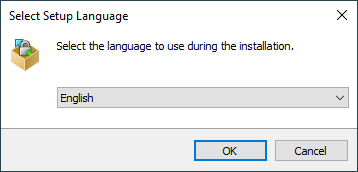
- On Welcome and License Agreement screens click Next after reviewing them.
- You will be prompted to select a setup type. For basic setup, choose Typical installation.
- Then you will be prompted for Initial User Settings. This mainly allows you to select user interface style. If you have used (and enjoyed) file managers like Total Commander, Altap Salamander or Norton Commander before, keep default Commander interface. Otherwise you will probably be more familiar with Explorer interface.
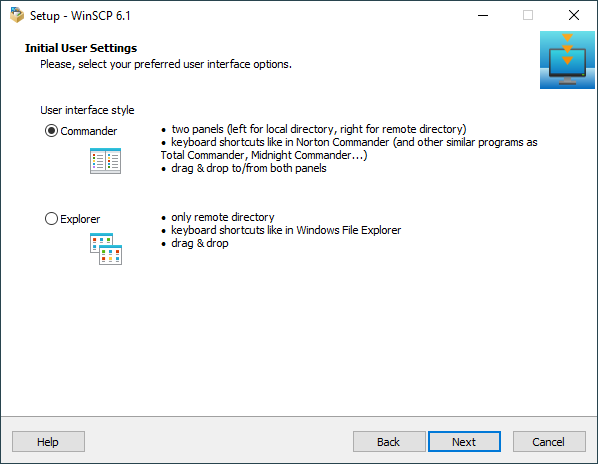
- After you select the interface, the Ready to Install screen opens. On this screen, you can review the installation options you’ve selected. Click Install to start the installation.
- A brief installation process will take place. You may have to restart your computer. If you choose not to restart, some WinSCP functions may not be available until you do so.
Further Reading
If you need more details check documentation for installing WinSCP.
Once you have WinSCP installed you may want to check:
- Other guides to using WinSCP;
- Tasks you can do with WinSCP;
- Using WinSCP as portable application.